Four products.
One small box.
The Firefly CAP100 is a router and access point, a camera recorder that recognises people and vehicles on the device itself, a hub for Bluetooth audio and IoT sensors, and a monitored endpoint that reports to GEN2. Use as many of them as you like.
Everything runs locally. Video is never uploaded, the AI runs on the device, and the only things that leave are the reports and notifications you configure.
The appliance is a 701 MB OVA, sent to you on request. The manual opens straight away.
- Roles in one box
- 4
- Cameras per device
- 8
- On-device AI check
- ≈1 s
- Frames uploaded
- 0
Roles in one box
Cameras per device
On-device AI check
Frames uploaded
About 1.0–1.4 s per check on a CAP100-W — no cloud round trip.
Firefly Access Point CAP100-W
Smart. Secure. Connected. Two hotspot modes, so it drops into a network you already have or becomes the network itself. Firefly is built and supported by Vertical Shifts.
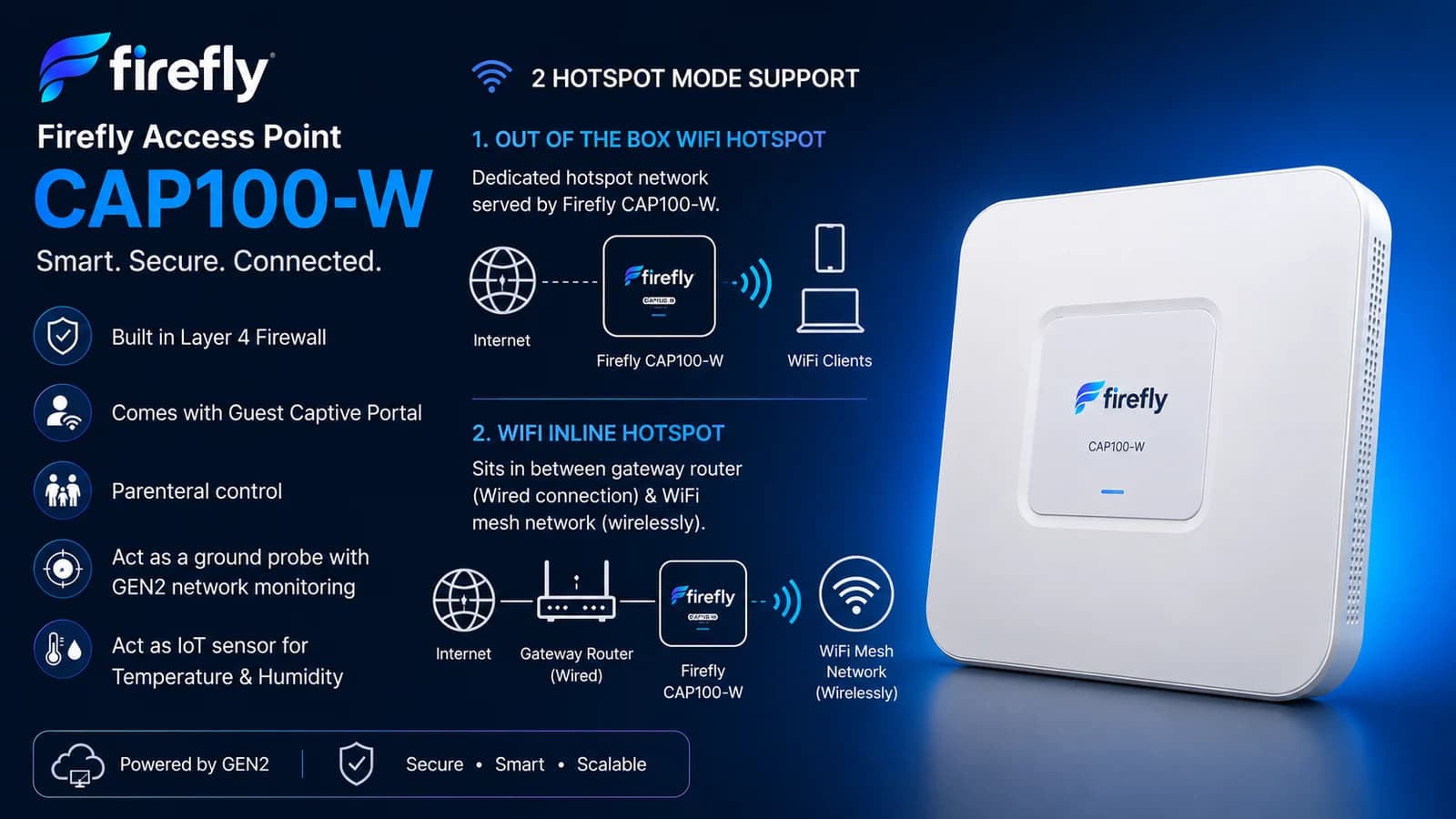
- 1
Out of the box Wi-Fi hotspot
A dedicated hotspot network served by the CAP100-W itself. It takes the internet connection and hands out its own Wi-Fi.
- 2
Wi-Fi inline hotspot
It sits between your existing gateway router over a wired connection and a Wi-Fi mesh network, adding its filtering, shaping and portal to a network you already run.
- Built-in Layer 4 firewall
- Guest captive portal
- Parental control
- Ground probe for GEN2 network monitoring
- IoT sensor for temperature and humidity
Four things in one box
Use as many or as few of them as you like — each one is a section of the same interface, and none of them requires the others.
- 01
A router and access point
It shares an internet connection, hands out addresses, runs a Wi-Fi hotspot, and filters and shapes traffic.
- 02
A camera recorder
It watches RTSP or ONVIF cameras, recognises people, vehicles and animals on the device itself, and notifies you by rules you write.
- 03
A hub for other devices
It relays Bluetooth audio to two headphones at once, and collects readings from IoT sensors.
- 04
A monitored endpoint
It watches its own health, checks targets you name, reads a temperature and humidity sensor, and can report to a GEN2 server.
The whole connection, in one place
Everything from which port faces the internet down to which device is allowed how much of it.
WAN
Pick which port carries internet traffic and whether this device takes its address automatically or uses a fixed one.
LAN
Set the address, mask, gateway and DNS for any interface. The list names each one by role, so you always know which radio you are changing.
DHCP server
Pool range, lease time, upstream DNS, and reservations. Reserve addresses for cameras — surveillance refers to them by address, so a camera that moves after a power cut stops working.
Wi-Fi hotspot
SSID, radio, standard from b/g/n through ax and be, channel, country and power. WPA2/WPA3 transitional for mixed households, or WPA3 required.
Wi-Fi client
Join an existing network so a CAP100-W can reach the internet without a cable. Scan, save, forget, or add a hidden network by hand.
Clients
A live list of everything on the network — names, addresses and how each one is connected.
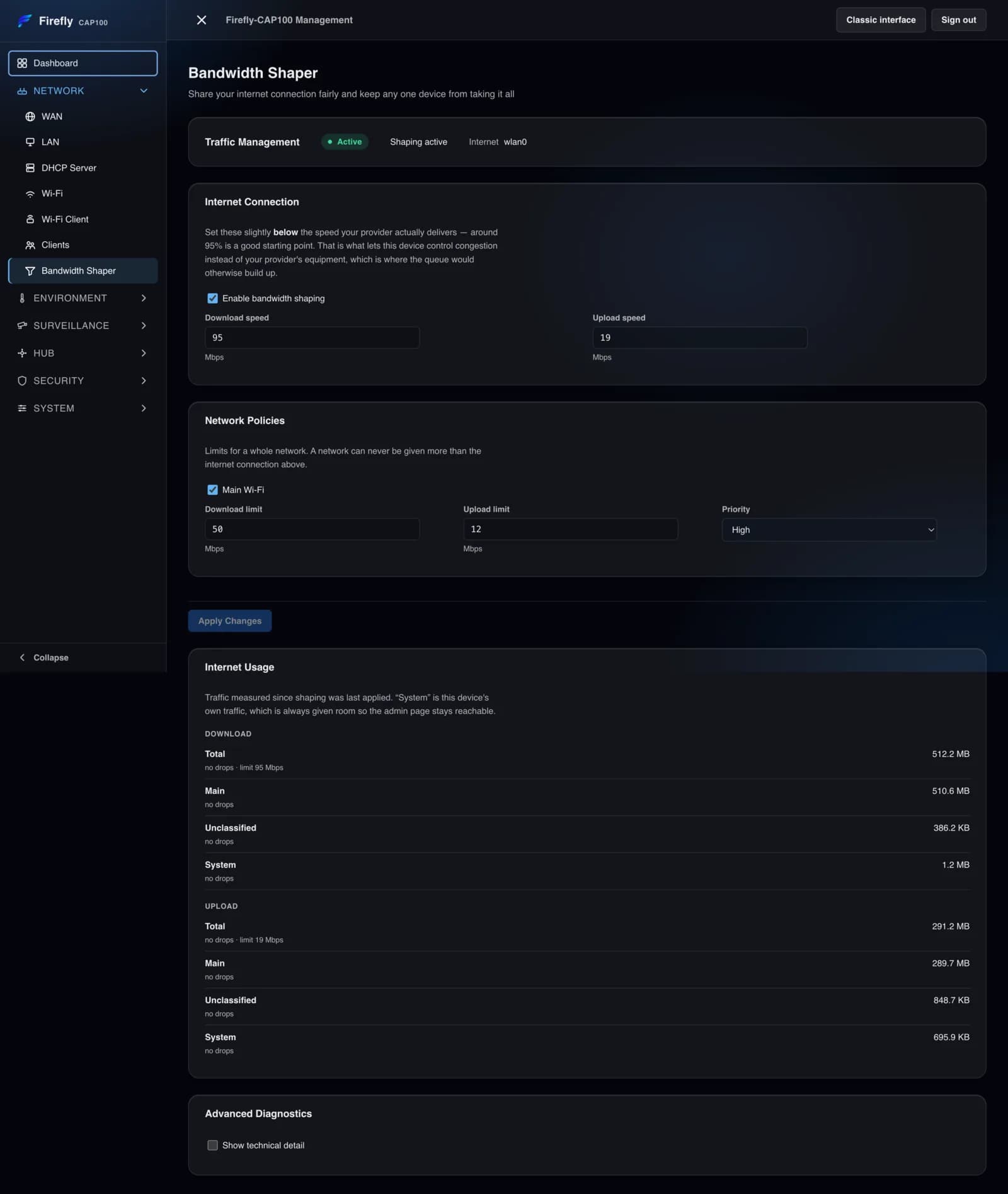
Bandwidth shaper
Per-network limits with a priority of High, Normal or Low, so one download stops ruining everyone else's video call. The device's own traffic is always given room, so this admin page stays reachable.
Cameras that understand what they see
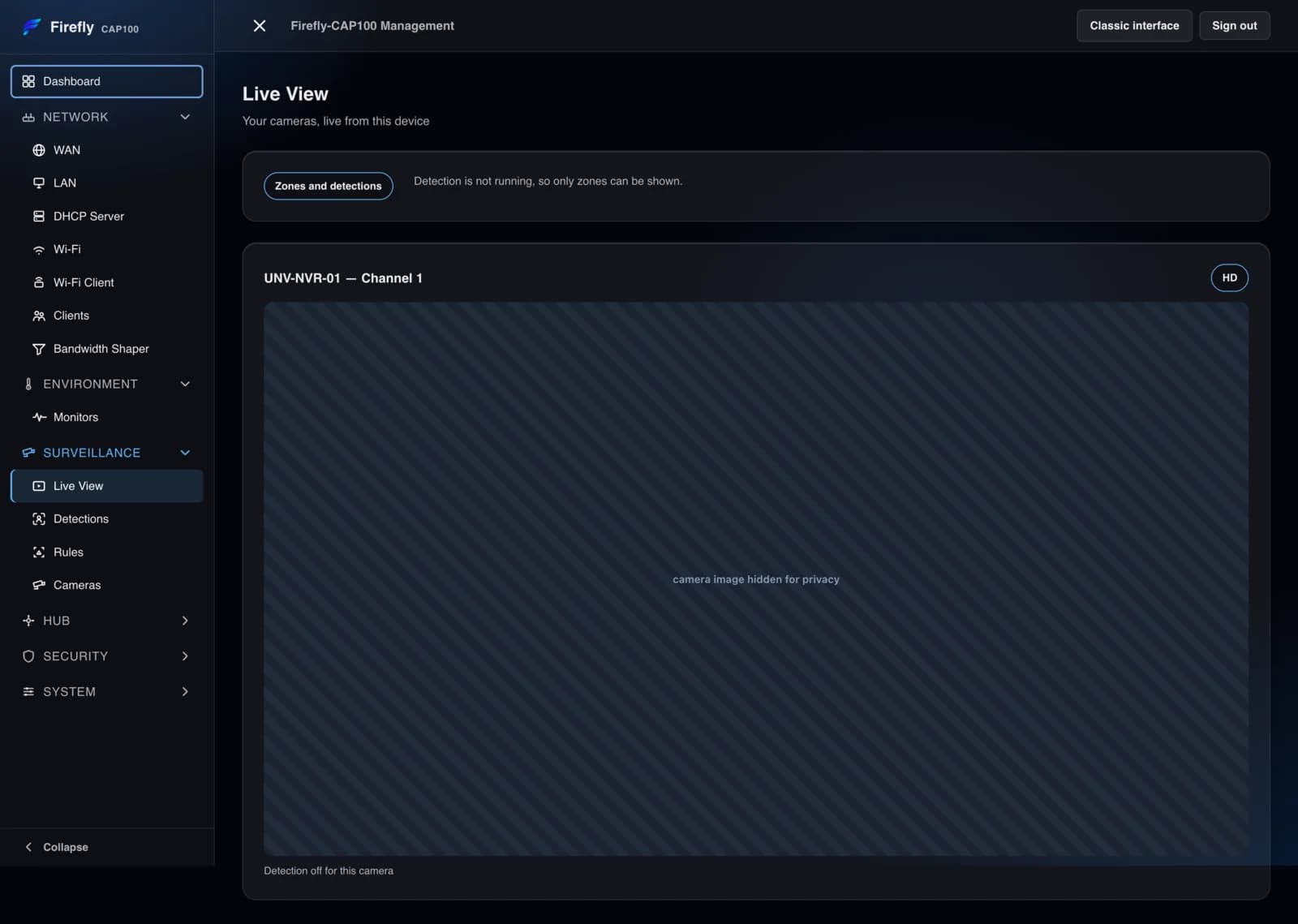
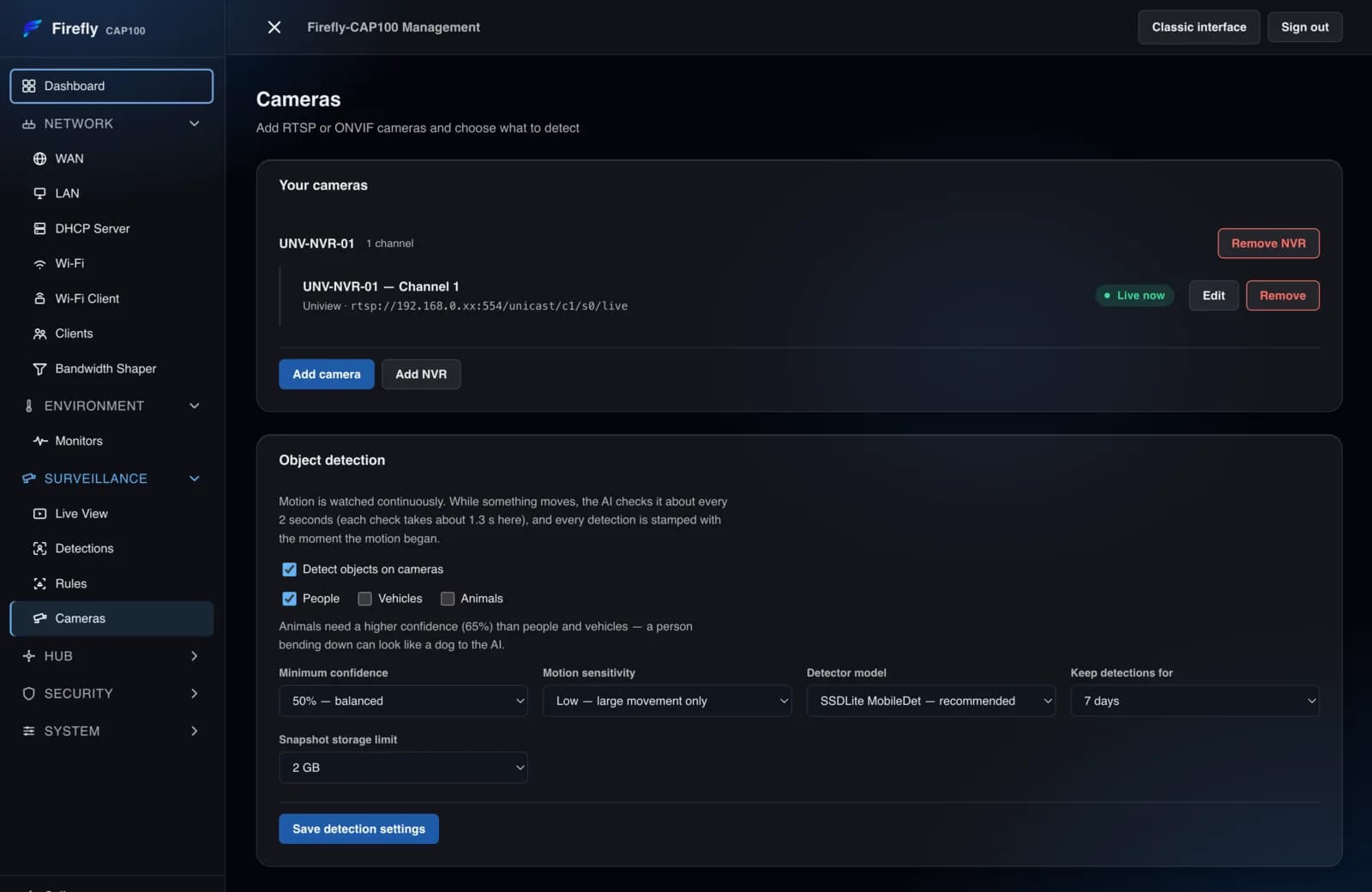
Up to 8 RTSP or ONVIF cameras, or every channel of an NVR imported at once. People, vehicles and animals are recognised on the device, and the video itself is never recorded — it passes from the camera to your browser.
How detection works
- Motion
- Snapshot
- AI check
- Zone test
- Rule
- Notify
Nothing is sent anywhere to be recognised. The device decodes the sub stream, waits for movement, and runs one check — about 1.0 to 1.4 seconds on a CAP100-W — before a rule is allowed to fire.
Zones
Up to 8 areas per camera, 3–24 corners each — a gate, a driveway, a doorway. Something counts as inside when the bottom middle of its box is inside, which is where a person actually stands.
Schedules
Up to 16 named sets of hours — “Nights”, “While we're at work” — each with up to 14 windows, so a rule only fires when it should.
Owner presence
A rule can pause while an owner is home, detected from the devices associated with this unit's own Wi-Fi. An unknown answer counts as away, so a broken check never disarms a rule.
Rules and notifications
Up to 32 rules, each with its own cooldown from 0 seconds to 24 hours and an optional signed webhook. Recent activity separates “never matched” from “held back”.
Drawn where the detector actually measures
The picture is padded to 16:9 in the editor because that is exactly how the detector sees it, so what you draw lines up with what the AI measures.
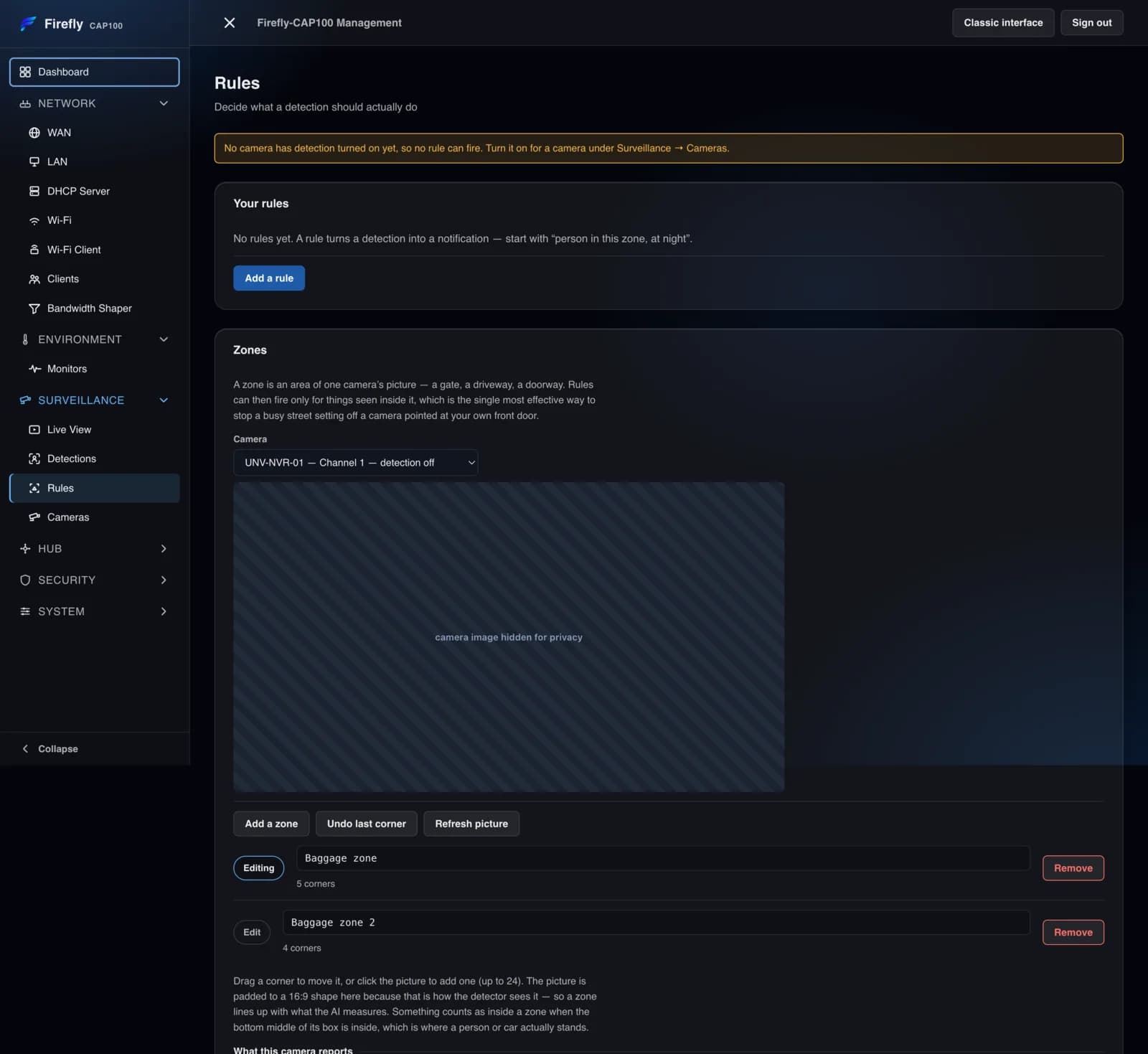
Two things the product is honest about. Animals are held to a higher bar automatically — your confidence plus 15 points, never below 65% — because a person bending down is easily mistaken for a dog by this class of model. And cameras should be set to H.264: browsers handle H.265 poorly, and it is the usual cause of a frozen Live View.
A hub for the devices around it
Bluetooth audio relayed to two headphones at once, and IoT sensors collected, checked and forwarded on.
BT-Splitter
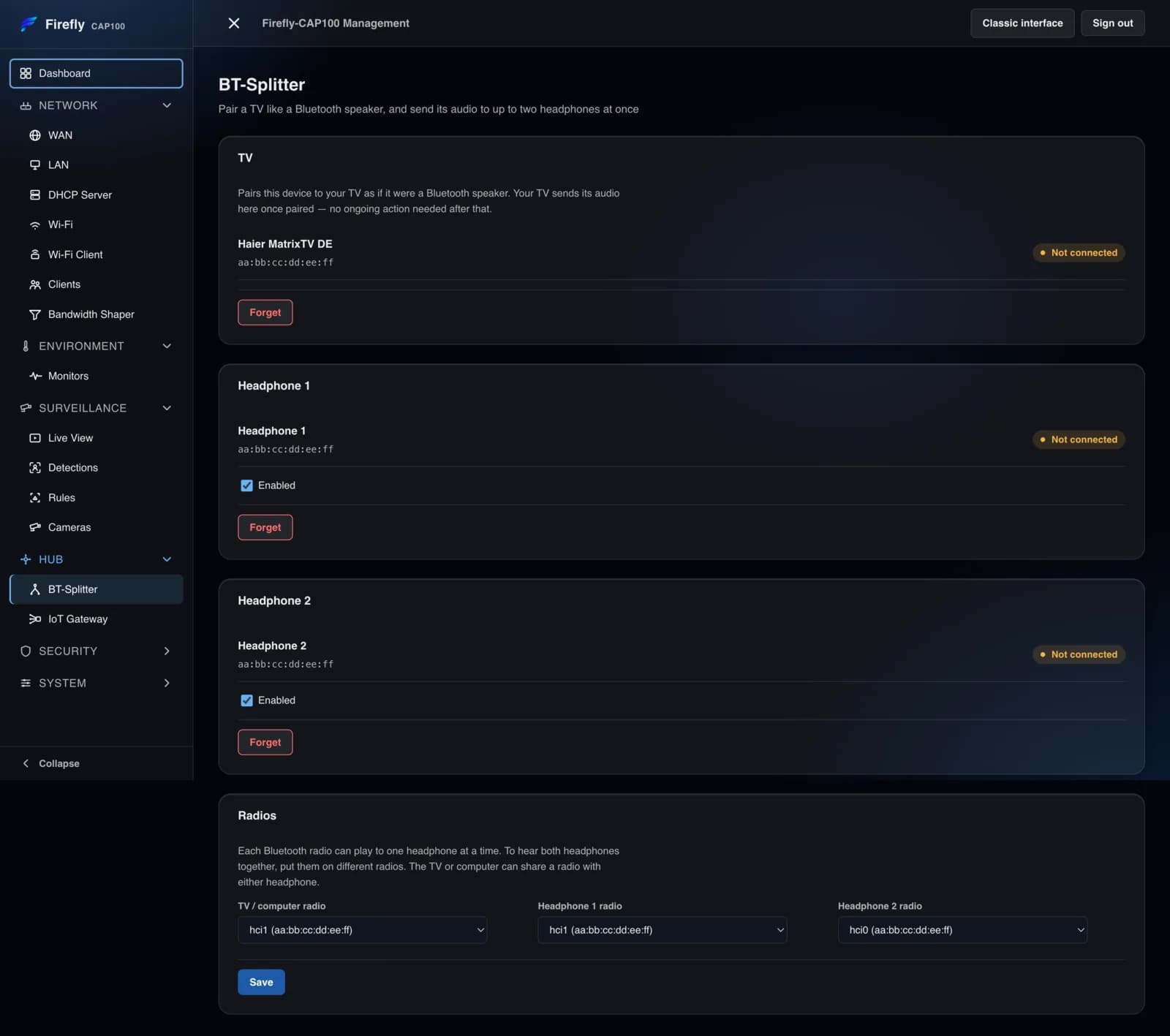
The device behaves as a Bluetooth speaker for your TV or computer, then relays that audio out to two sets of headphones at once — useful for late-night television without disturbing anyone. Once paired, the TV reconnects by itself.
Each radio plays to one headphone at a time. To hear both together, put them on different radios; on a single-radio unit you can pair both, but only one will play.
IoT Gateway
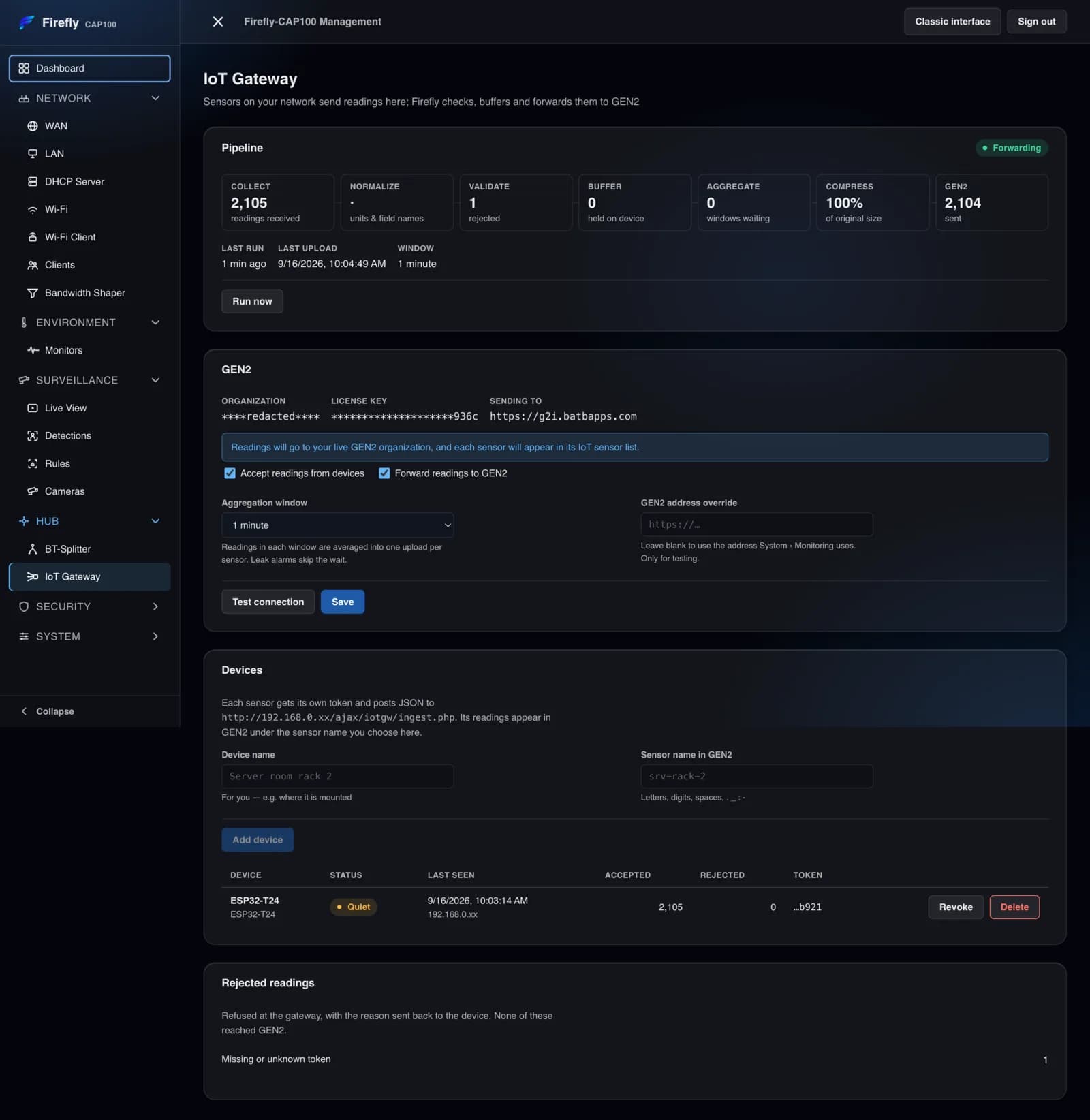
Sensors post their readings to this device, which checks and combines them over a window you choose — 1 to 15 minutes — and forwards them to your GEN2 organisation. Each sensor gets its own token, and tokens can be revoked.
Readings are buffered, so a sensor keeps working through an internet outage. Forwarding writes to your live GEN2 organisation, so it is off until you turn it on.
Control over who gets on, and what they reach
Four separate tools, each aimed at a different question — the network's edge, one person's device, every device at once, and the guest who has just arrived.
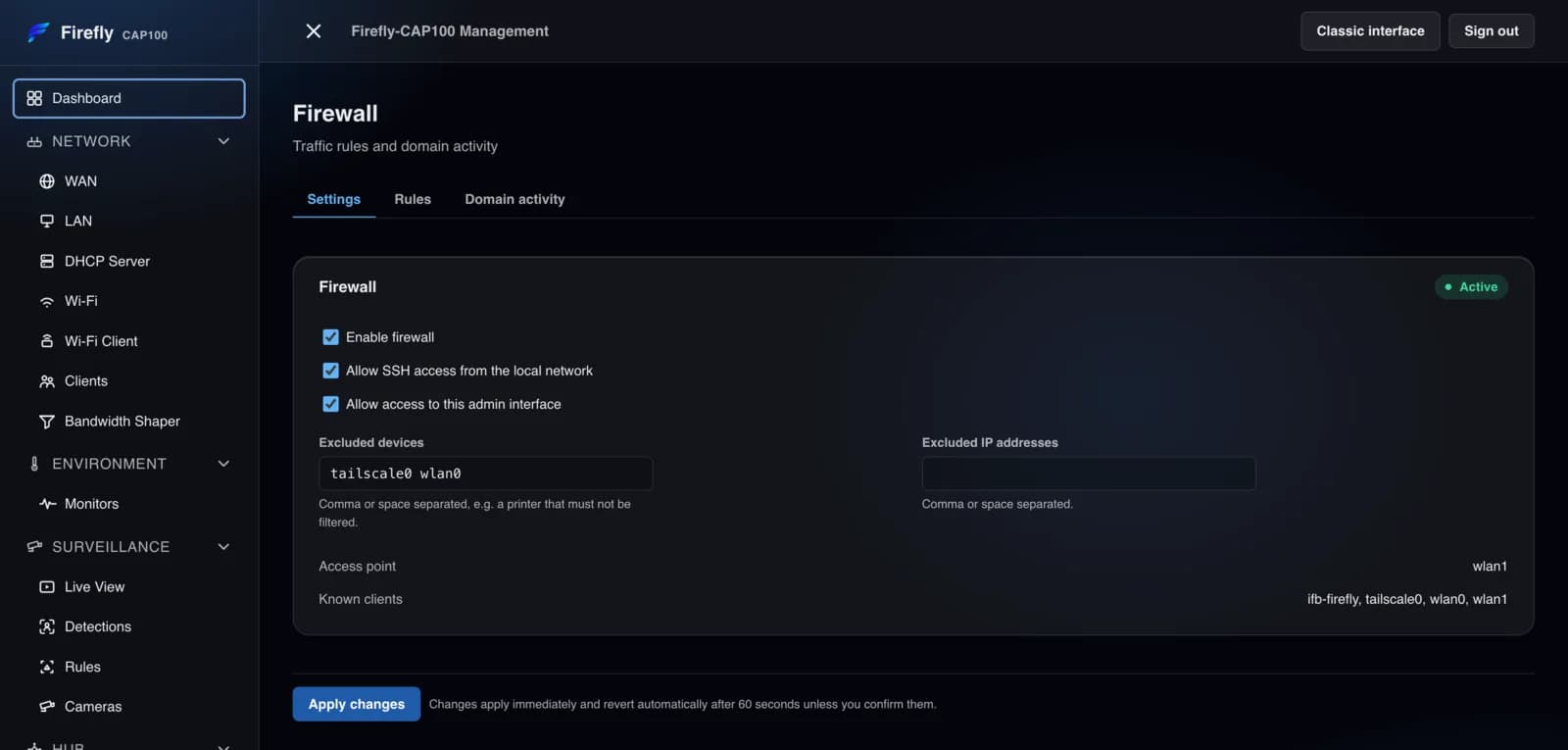
Firewall
A master switch, plus control over SSH from the local network, whether this admin interface is reachable at all, and which devices the rules skip.
Parental control
Per-device rules rather than network-wide ones — the right tool when a restriction should apply to one person or one device.
Ad blocking
Network-wide, for every device, with custom entries and a list of what has recently been stopped — the quickest way to confirm it is working.
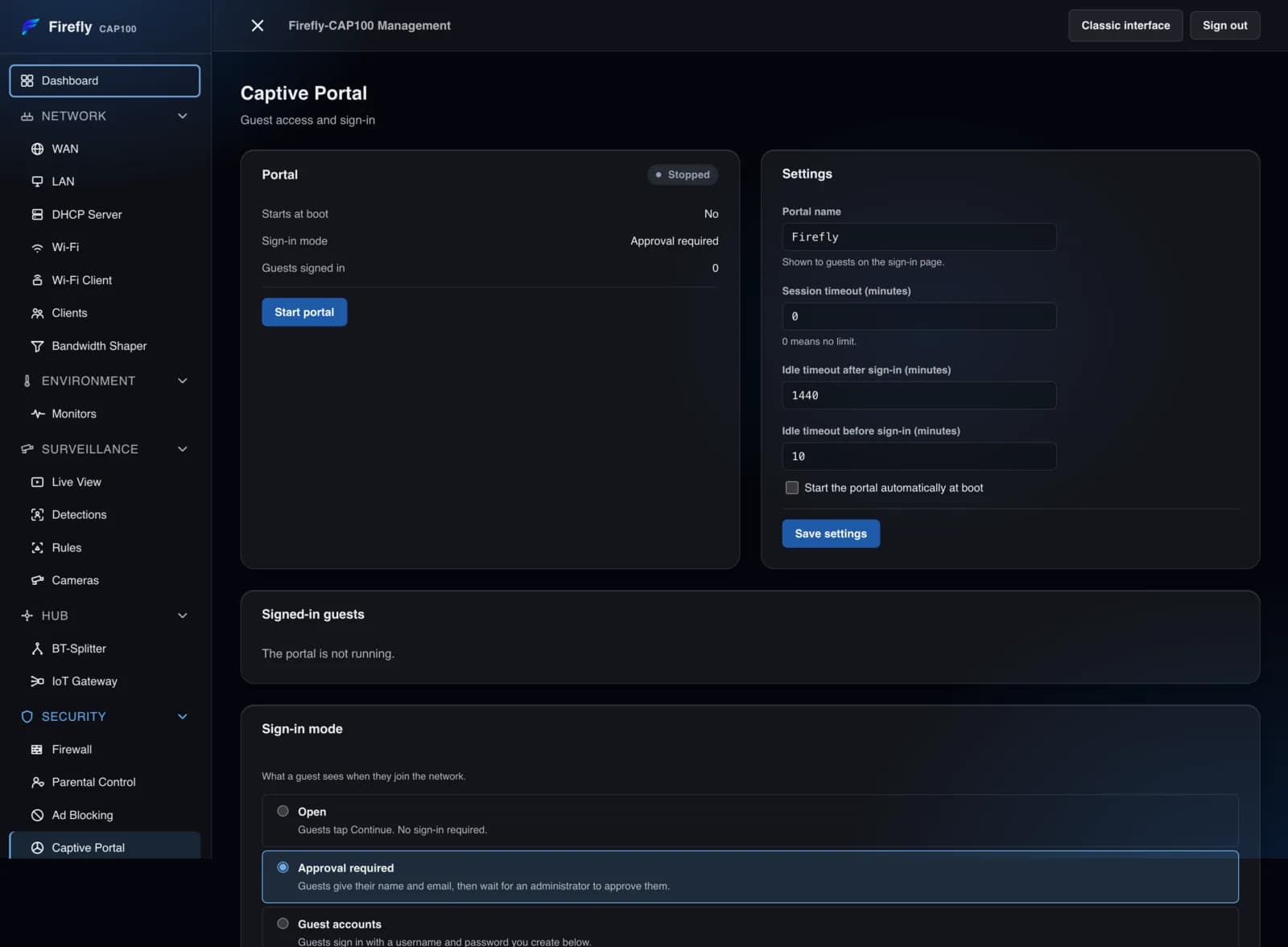
Captive portal
The sign-in page guests meet when they join, with session and idle timeouts, named guest accounts, and an exempt list for printers, TVs and sensors that cannot fill in a form.
It watches itself, too
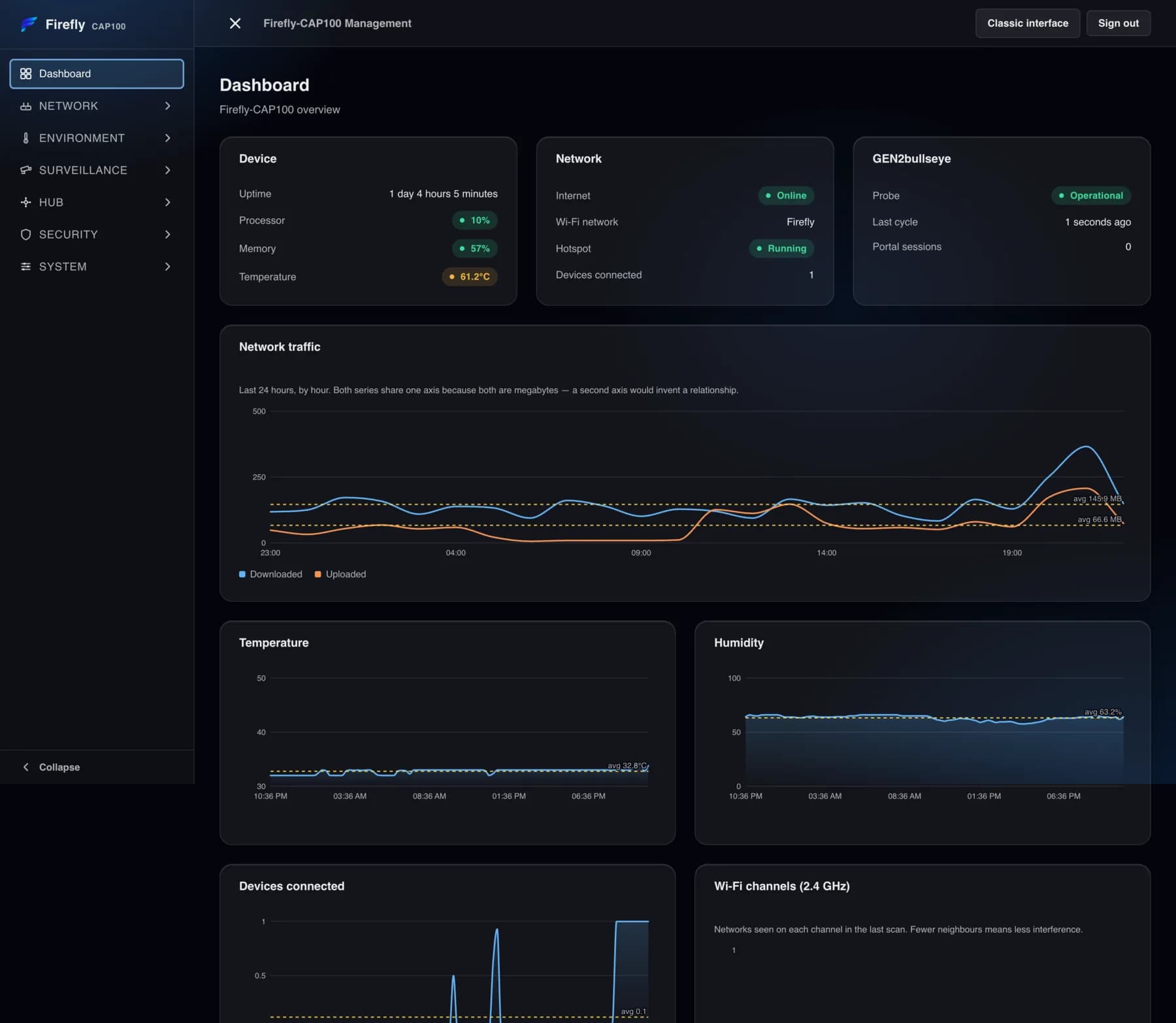
Response times for the targets you name, readings from an attached sensor, and the plain operational pages you need on the day something is wrong.
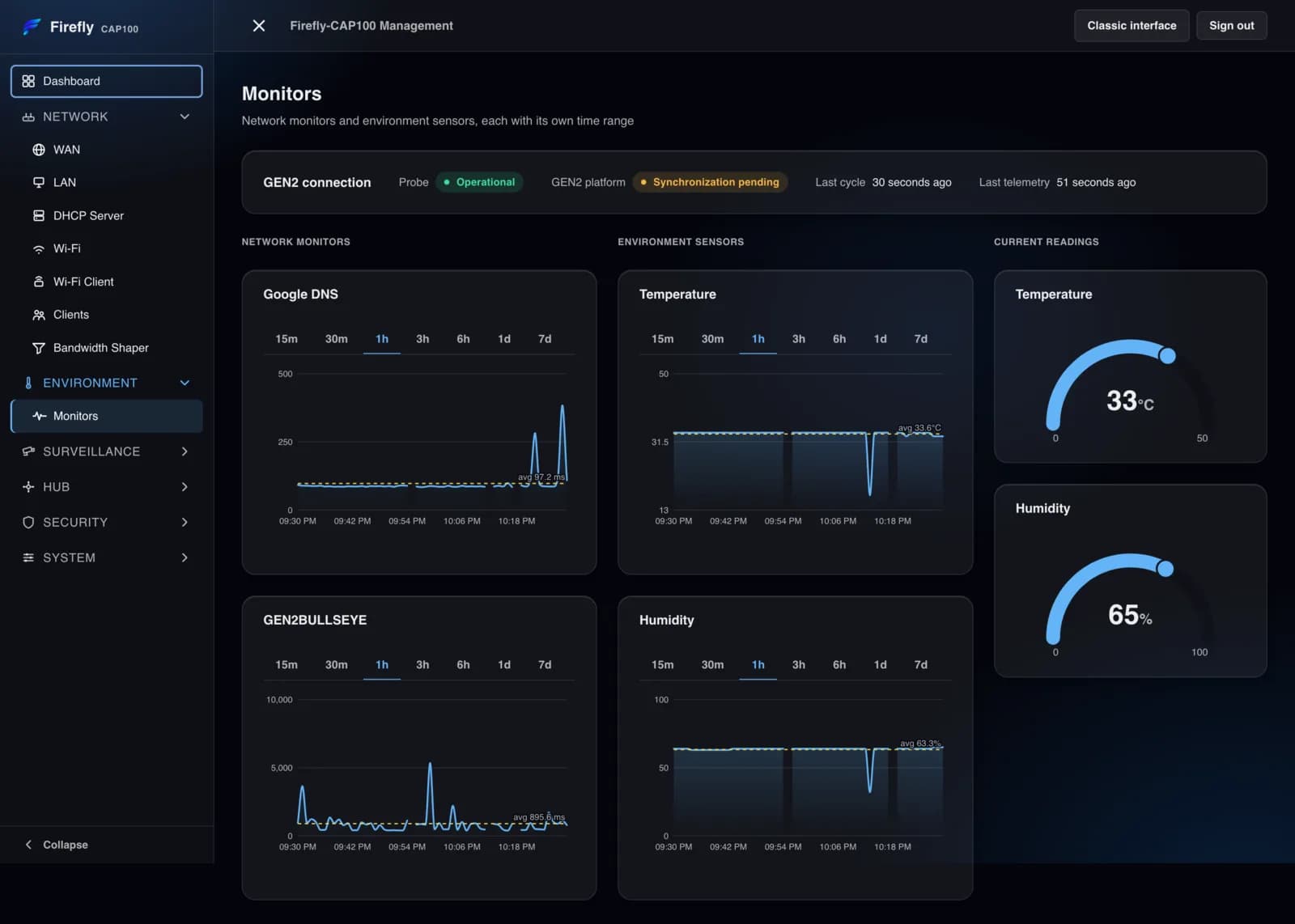
Monitors and recorded history
Targets are checked on a schedule and their response times kept, alongside temperature and humidity. Each chart has its own range, from fifteen minutes to a week. A break in a response-time line is a check that failed, not missing data.
Environment sensor
A DHT11 temperature and humidity sensor on a GPIO pin, read on the device and charted beside everything else.
Device
Model and health, restart and shutdown, and the port, listen address and log size for the web interface.
Services
What is running and what starts at boot. “Scheduled” is not a fault — some jobs run on a timer and are waiting for their next run.
Logs
The most recent 300 lines of DHCP and DNS activity, the hotspot, the captive portal, parental control and the system itself, each on its own tab.
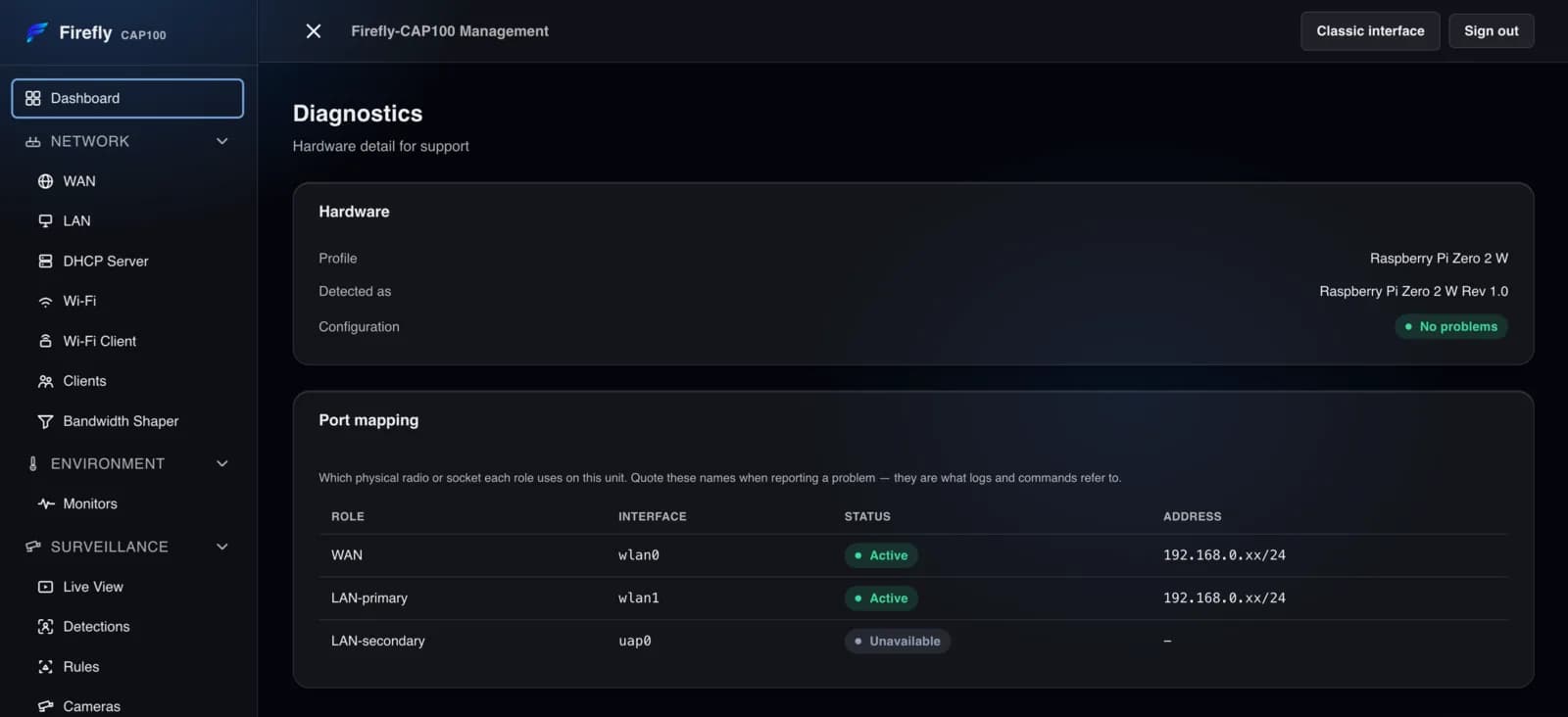
Diagnostics
A port map naming every radio and socket by role, with its status and address — quote these names when reporting a problem.
Run the whole thing without the hardware
The same software as a virtual machine — 701 MB, OVF 1.0, x86-64. Built from a live device, with every credential and piece of site configuration stripped out and the ARM binaries replaced by their x86-64 equivalents.
Import it anywhere
- VMware Workstation / FusionFile → Open → select the .ova
- VirtualBoxFile → Import Appliance
- ESXi / vCenterDeploy OVF Template
- Proxmoxqm importovf <vmid> … <storage>
It declares 2 vCPU, 4 GB RAM, a 12 GB disk, one NIC and a USB controller. Bridge the network adapter — behind NAT it cannot reach the cameras, and nothing on your LAN can reach its web interface.
It builds its own identity
- 01Generates its own SSH host keys, machine ID and API secret
- 02Takes an address by DHCP — read it from the VM console
- 03Open http://<address>/ and sign in with the documented defaults
Two clones of this image are therefore two distinct machines, not twins. The default web and console passwords are published in the manual — change both immediately.
What works exactly as it does on the hardware
- Surveillance — cameras, live view, zones, rules, schedules, presence, webhooks
- Firewall, DHCP and DNS, ad blocking, captive portal, parental control
- Bandwidth shaping, monitoring, logs and diagnostics
- Both detection models, byte-identical to the hardware build
What needs hardware
A virtual machine has no radios, so the Wi-Fi hotspot, Wi-Fi client and BT-Splitter ship switched off. Pass a USB Wi-Fi or Bluetooth adapter through and run sudo firefly-usb-radio to enable the matching services.
The IoT Gateway's DHT11 sensor needs a GPIO header, which no virtual machine has. The GEN2 uplink still works.
Firefly-CAP100-Appliance.ova · 701 MB · OVF 1.0 · x86-64 — tell us your hypervisor and we'll send you the image.
SHA-256 fb3ebc8824019fe4304afde34b1a312b2a8487568bcd4023ceed303f8f91e151
Limits and specifications
The real ceilings, published rather than left to be discovered.
- Cameras
- 8 per device
- Zones
- 8 per camera, 3–24 corners each
- Schedules
- 16, each up to 14 time windows
- Rules
- 32
- Owner devices
- 16
- Detection retention
- 1–90 days; snapshots 100 MB – 20 GB
- Rule cooldown
- 0 seconds – 24 hours
- Time present
- 0 – 600 seconds
- IoT aggregation
- 1 – 15 minutes
- Bluetooth
- Two headphones, one per radio
- Camera protocols
- RTSP, RTSPS, ONVIF — H.264 strongly preferred
- AI check time
- ≈1.0–1.4 s on CAP100-W
Try it before it touches your network.
The whole device, as a VM.
Ask us for the appliance, import it, bridge its adapter and sign in — or read the manual first and see every page before you commit to anything.
Questions first? verticalshifts@gmail.com