Every Android you own,
on one screen.
Lumora manages phones, tablets and Android TV boxes across every site from one portal — enrol them, see what each one is really running, approve app releases and push them out. Built for the mixed fleets that mainstream Android tooling handles badly.
One agent for phones and TVs — distributed privately, never through the Play Store.
- Device kinds — phones, tablets, Android TV
- 3
- Roles, from owner to read-only viewer
- 5
- Capabilities checked per device
- 13
- Remote shell or arbitrary commands
- 0
Device kinds — phones, tablets, Android TV
Roles, from owner to read-only viewer
Capabilities checked per device
Remote shell or arbitrary commands
Mixed Android fleets fall between the tools
Lumora was built for the estate most device management quietly ignores: screens and handsets, several brands, many sites, already installed.
Android TV is the awkward one
Google's Android Management API does not cover Android TV at all, so the screens in your shops and lobbies fall outside the tooling built for phones.
Consumer boxes, not fleet hardware
Signage estates are usually a mix of cheap TV boxes from several brands and firmware versions. What one supports, the next one doesn't.
Dashboards that guess
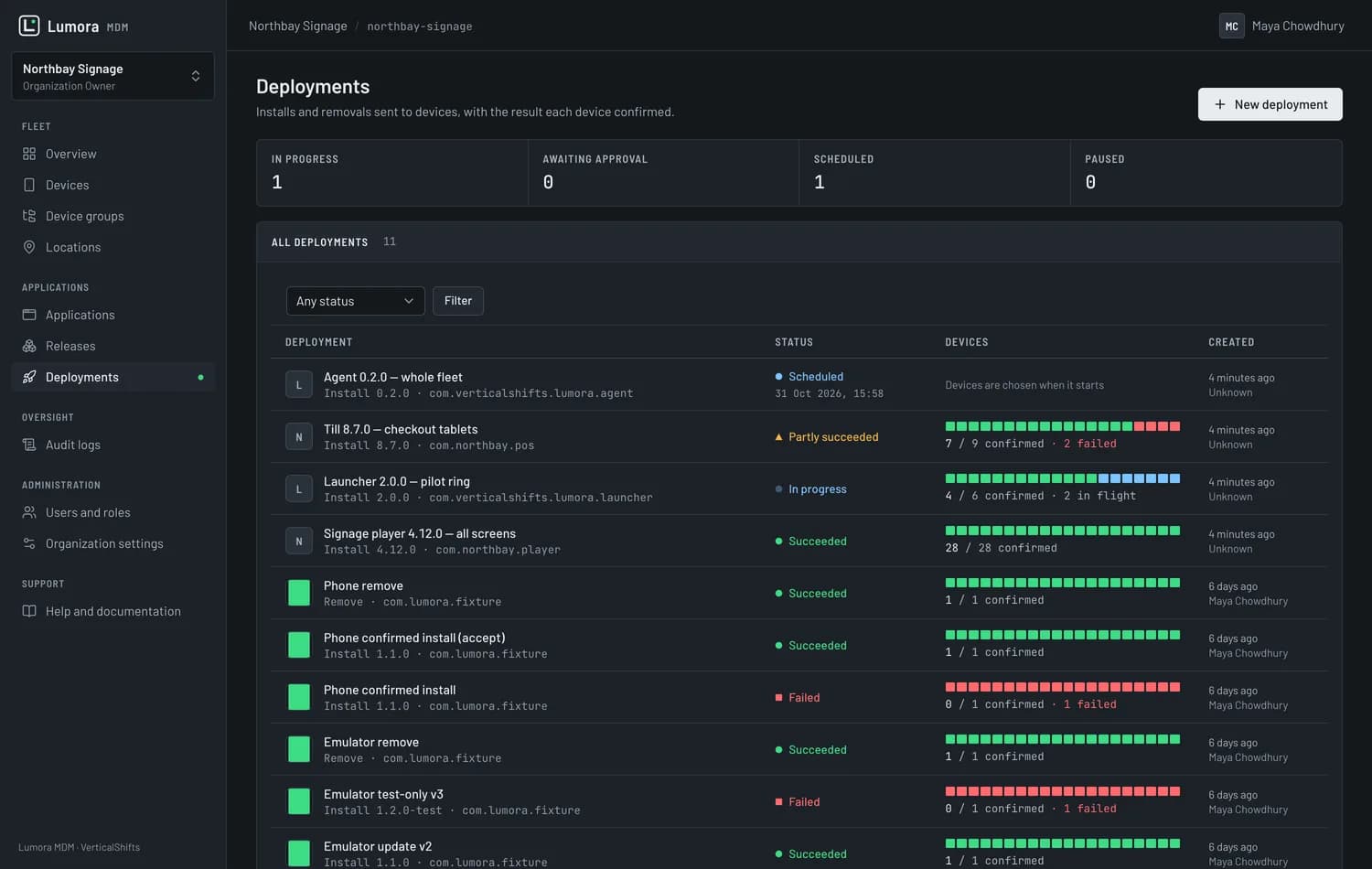
Most tools mark an install as done when the command is accepted. The device may never have installed it — and you find out when the screen is wrong.
A fleet already in the field
Devices are deployed, mounted and working. Any migration that needs a factory reset on every one of them is not going to happen.
Read the whole estate at a glance
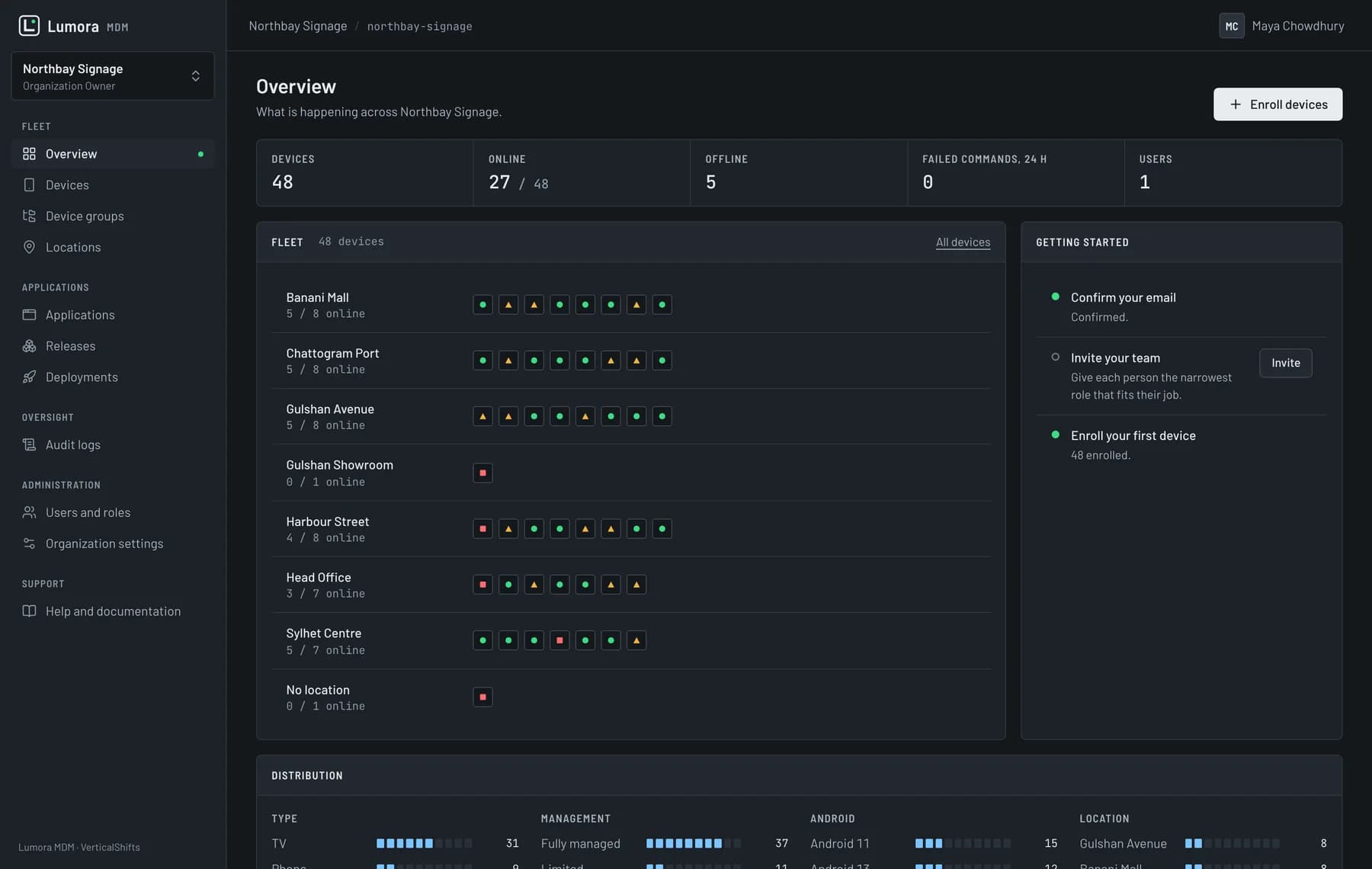
Lumora draws the fleet like a rack: one pip per device, shape and colour coded, grouped by the site it stands in.
Harbour Street · 16 devices
- Online
- Stale — no check-in recently
- Offline
Grouped by site
Every location is a row of pips, so a branch with a dark screen stands out before anyone rings to report it.
Groups that target
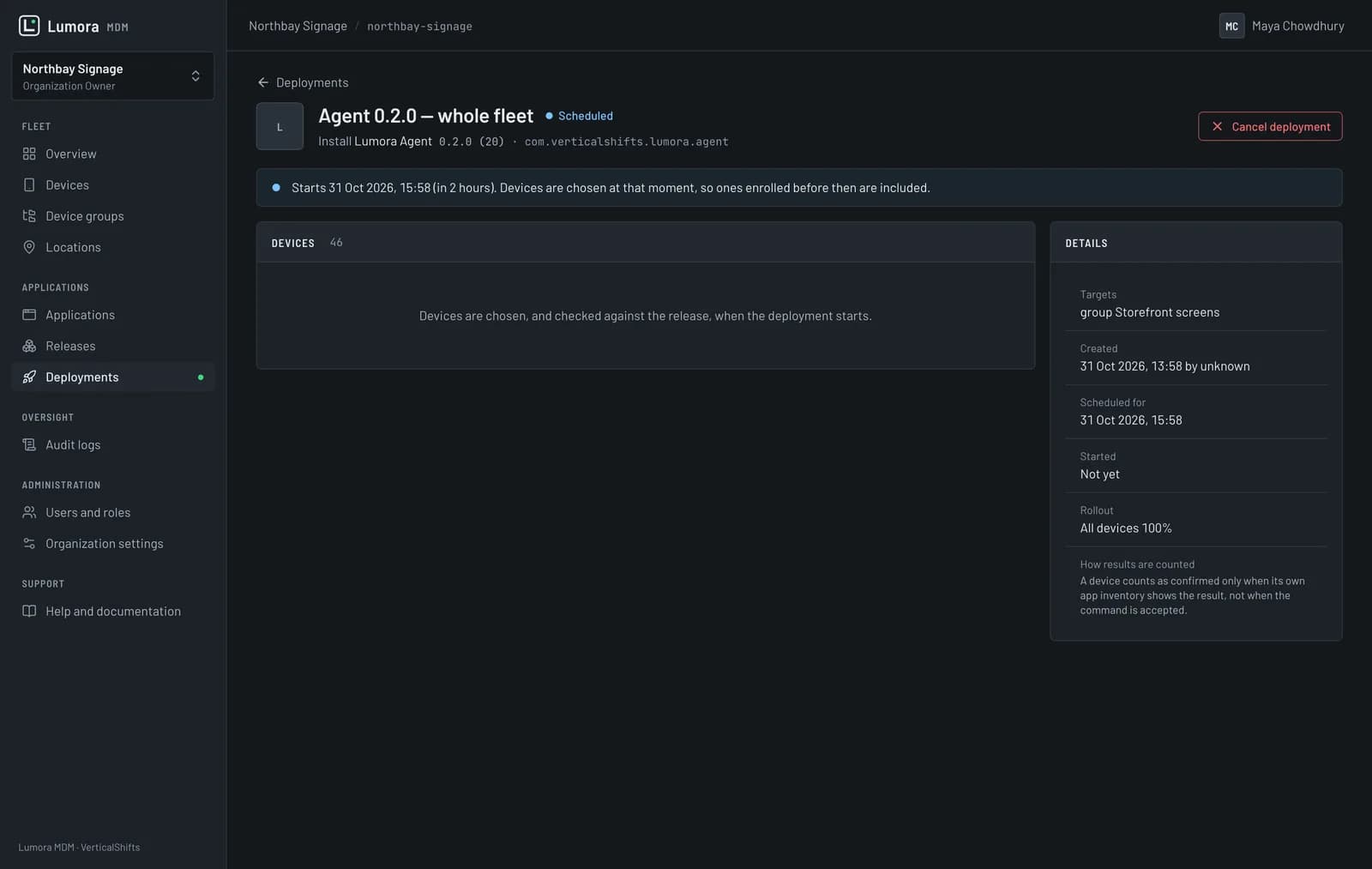
Storefront screens, checkout tablets, a pilot ring — the same groups you deploy to.
Built for thousands of rows
Search by name, model or serial, then filter by state, type, site, group or management mode.
In and out by CSV
Import an existing estate and export the inventory, so the fleet isn't trapped in the tool.
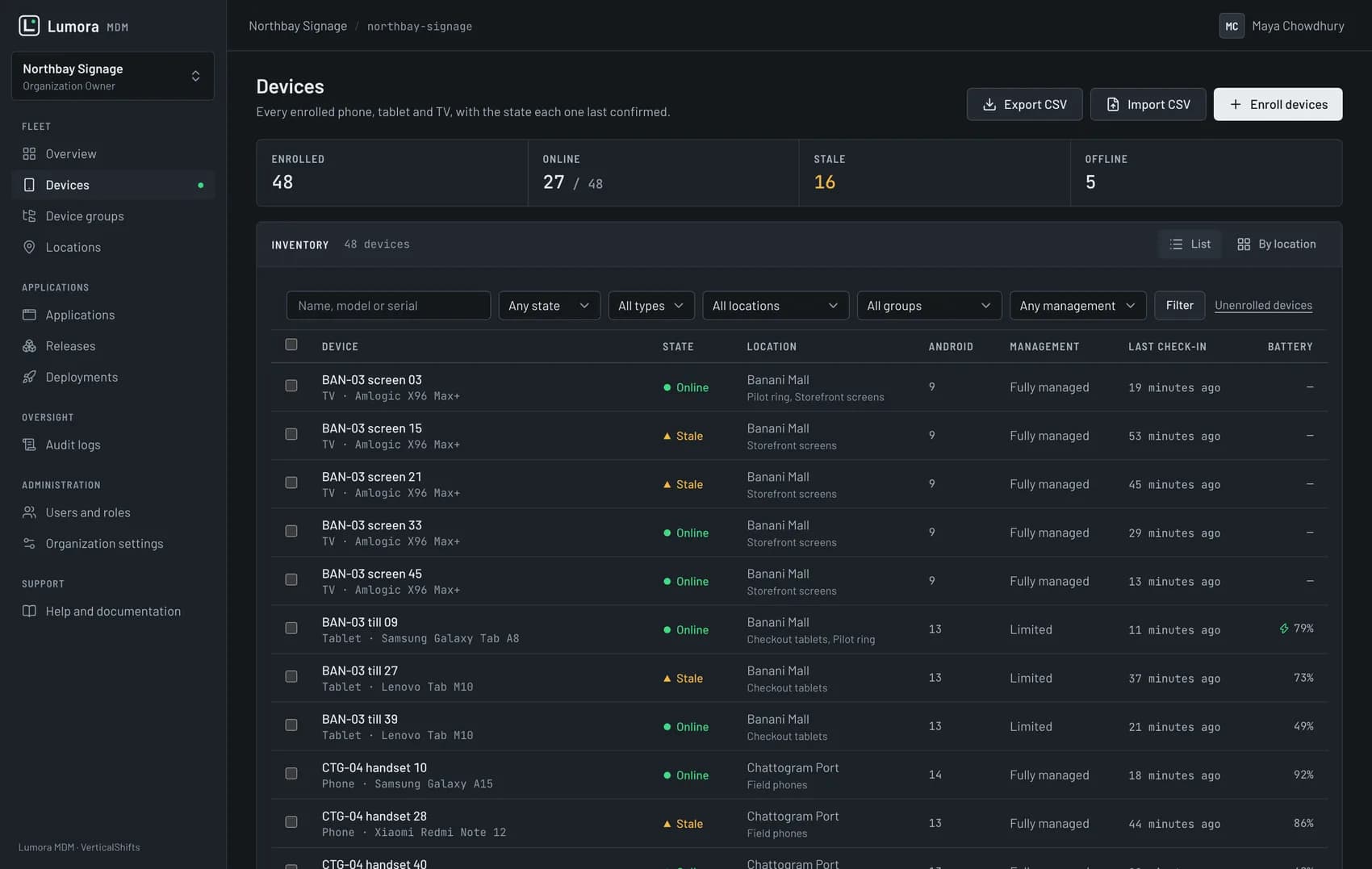
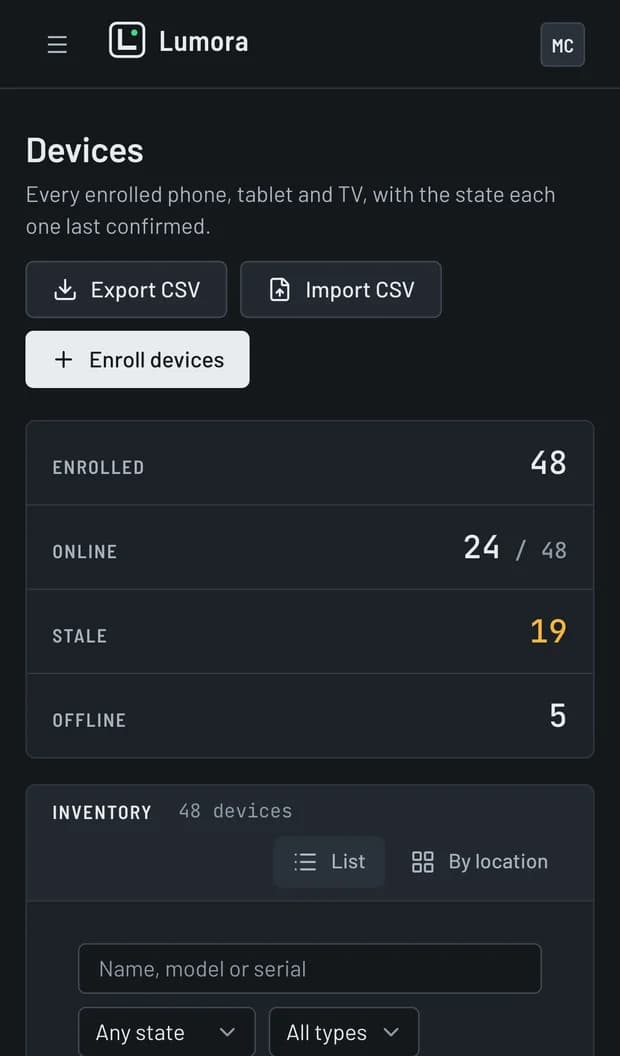
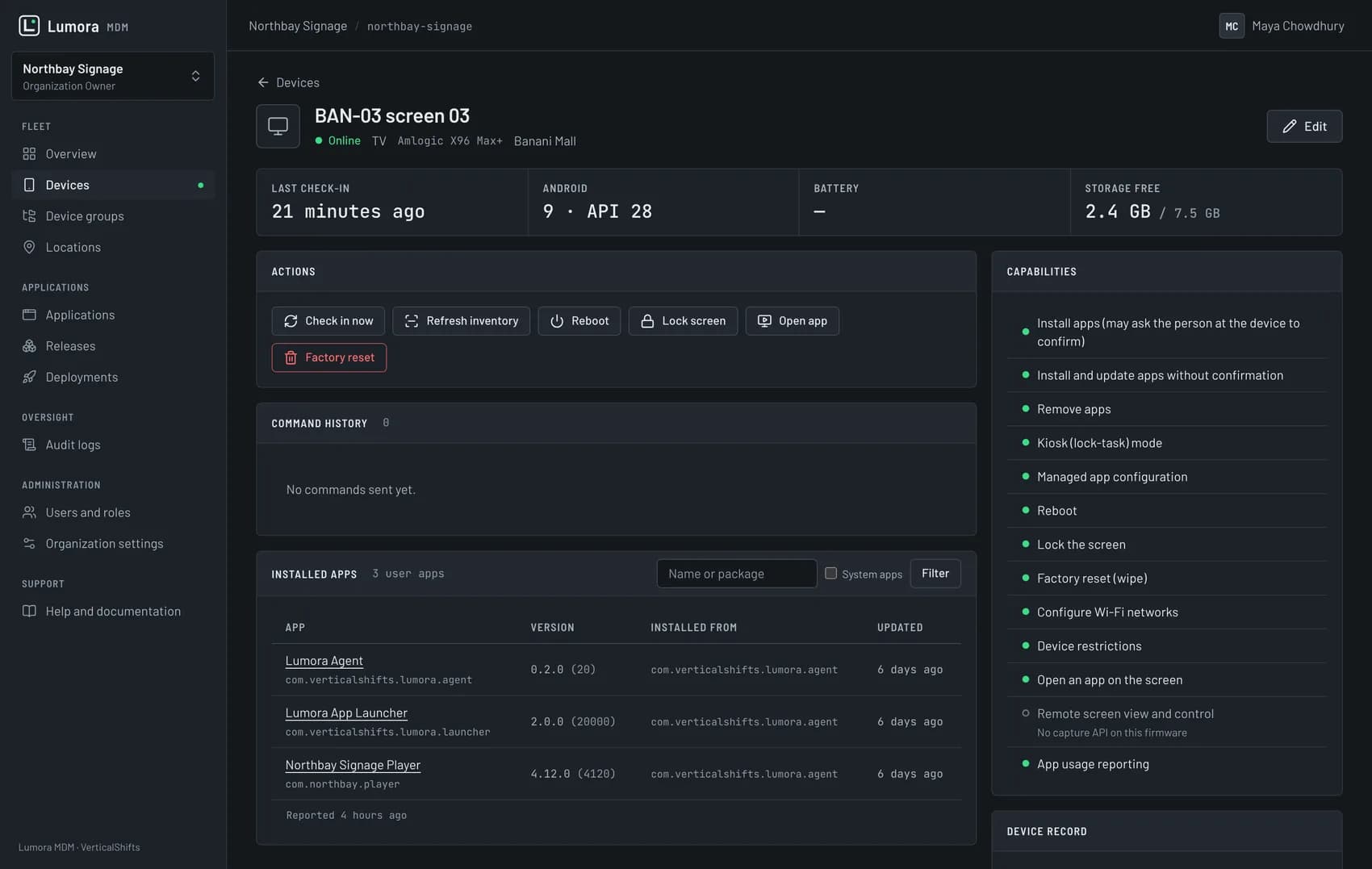
Console screenshots are from a demo organization built for this page. No customer device data appears in them.
From an APK to a confirmed install
Five steps, and the last one is the one most tools skip.
01
Upload
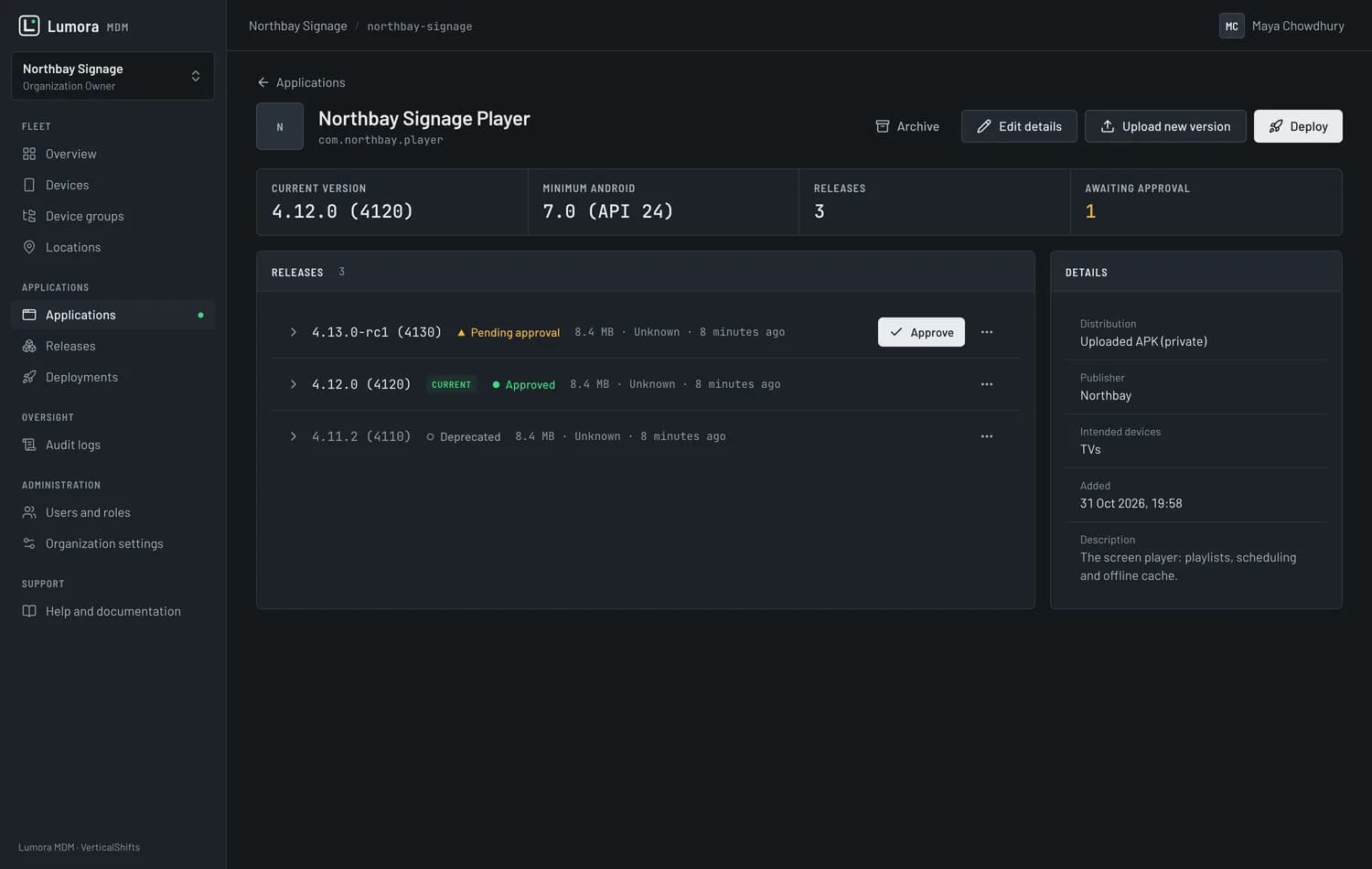
An APK is uploaded and parsed on the server — package, version, SDK range, ABIs and permissions read from the file itself.
02
Verify
Its signature is checked and the signer recorded, so a build signed by the wrong key cannot slip into the catalog.
03
Scan
The file is scanned for malware before it can be deployed. The check is fail-closed: no clean result, no rollout.
04
Approve
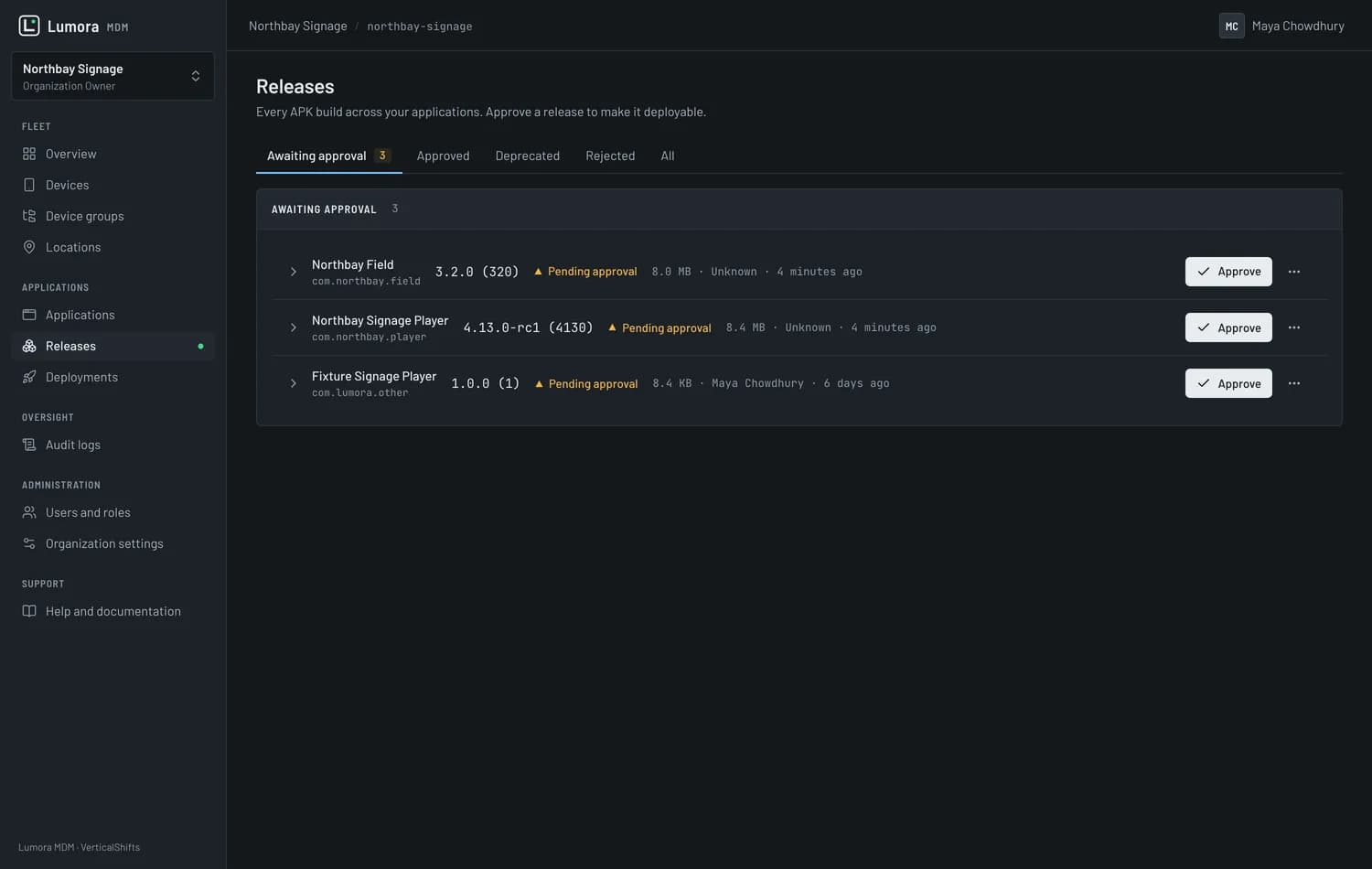
A release sits as pending until someone with the right role approves it. Only approved releases are deployable.
05
Confirm
After the rollout, a device counts as done only when its own inventory shows the app — not when the command was accepted.
Every device says what it can actually do
A cheap TV box and a managed handset are not the same machine. Lumora asks each device about thirteen capabilities and records one of five answers — then refuses any command the device did not say it supports.
Supported
The device reported it can do this. Only these actions are offered.
Requires privilege
Possible, but only once the agent is device owner — so the console says so instead of failing later.
Requires OEM
Needs a vendor API this build does not expose.
Unsupported
This model cannot do it at all. The button is not offered.
Unknown
Not tested on this model yet — shown as unknown rather than assumed.
What this rules out. There is no remote shell and no arbitrary command execution — not as a setting, not for support. Remote screen viewing is a separate capability that has to be authorised explicitly. A device is never wiped or reset as a side effect of anything; destructive actions show what they will touch and are written to the audit log.
Bring in a fleet that is already on the wall
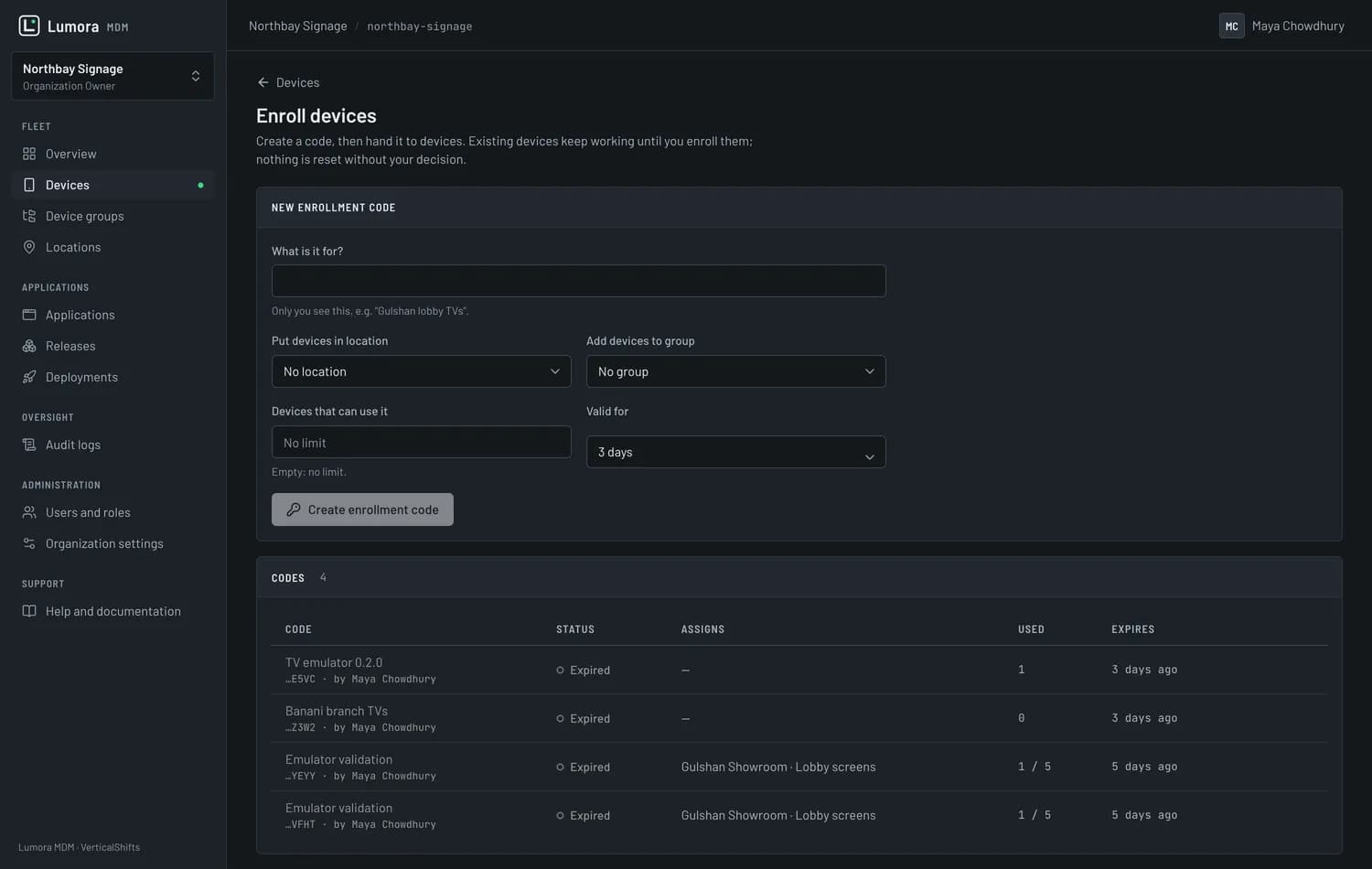
Existing devices keep working until you enrol them, and nothing is reset without your decision.
Make a code
Create an enrolment code, optionally pinned to a site and a group, with a device limit and an expiry.
Hand it to the device
The agent takes the code, checks in, and appears in the console with its inventory already reported.
Decide the mode later
A device can start limited and be upgraded to fully managed when it is next serviced.
Two levels of control, chosen per device
Fully managed
Device ownerThe agent is the device owner, so apps install and update silently, the screen can be locked to one app, and the device can be rebooted or reset from the console.
Set during provisioning, or with on-site ADB on a device that has no accounts yet.
Limited
Ordinary appThe agent runs as a normal app: full inventory and health, and installs that the person at the device confirms. Nothing silent, nothing destructive.
Install the agent and scan the code. No reset, no factory state needed.
Making the agent device owner on a device that is already in use may need a factory reset. Lumora never does that quietly — it is always an explicit, warned decision.
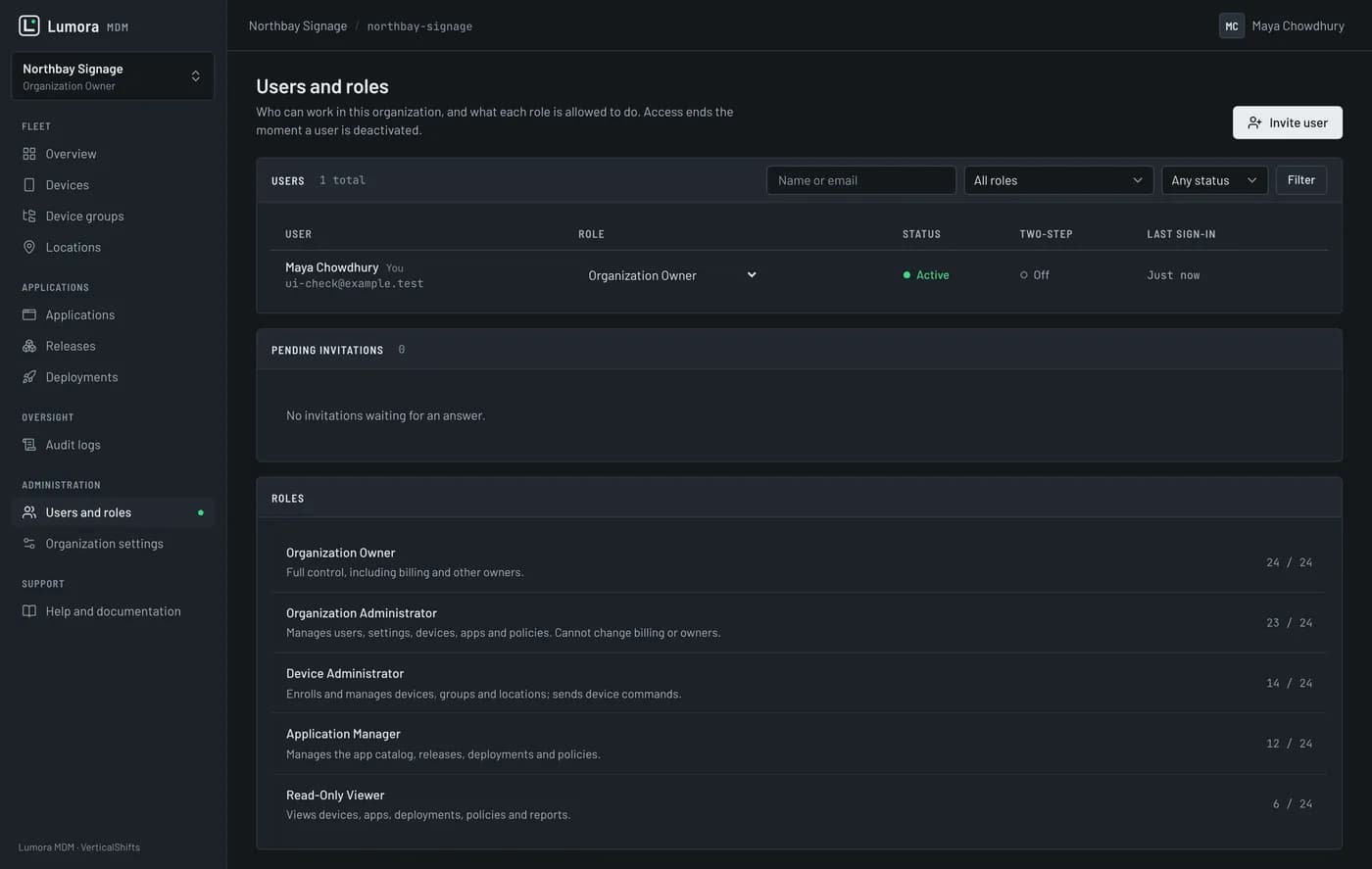
Who can do what, and a record of who did
Device management is a lot of power over other people's hardware. Lumora narrows it by role and writes down the rest.
Organization Owner
Everything, including billing and deleting the organization.
Organization Administrator
Manage people, sites, groups and settings.
Device Administrator
Enrol devices and run device actions.
Application Manager
Own the catalog: upload, approve and deploy releases.
Read-Only Viewer
See fleet health and reports, change nothing.
Isolation enforced in the database
Each organization's rows are separated by PostgreSQL row-level security, and the app connects as a role that cannot bypass it. A missing filter fails closed rather than leaking.
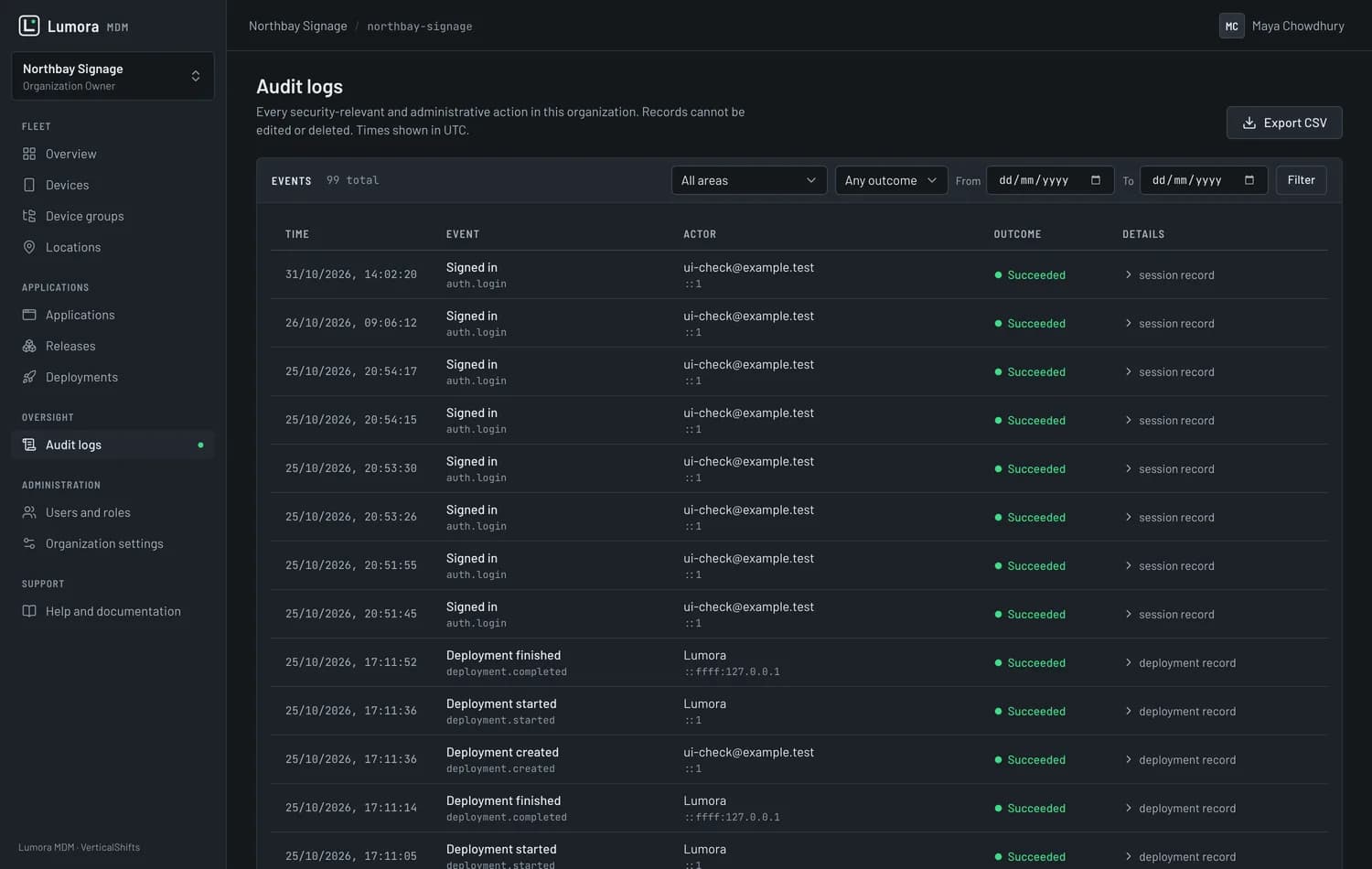
An audit log you can answer questions from
Who enrolled that device, who approved that release, who sent that reset — recorded with the actor and the time.
More than one organization
Run separate tenants for departments, regions or clients and switch between them from the account menu.
Single sign-on is on the roadmap, not shipped. Accounts on the hosted service are created through Google sign-in today.
What Lumora does, in one list
- Device types
- Phones, tablets, Android TV and TV boxes
- Management modes
- Fully managed (device owner) or limited (ordinary app)
- Agent
- Lumora Agent — a private APK, never published on Google Play
- Capabilities tracked
- 13 per device, in 5 states
- App sources
- Uploaded APK releases, with signature verification
- Malware scanning
- On every uploaded release, fail-closed
- Deployment targets
- Whole organization, a site, a group, or chosen devices
- Rollout
- Staged by percentage, with scheduling
- Install truth
- Confirmed from the device's own inventory, not provider acceptance
- Roles
- Owner, Administrator, Device Admin, App Manager, Viewer
- Tenant isolation
- PostgreSQL row-level security, fail-closed
- Import / export
- CSV in and out of the device inventory
- Interface
- Light, dark or follow the system
- Not included
- No remote shell, no arbitrary command execution
Start with one site.
Nothing is reset to find out.
Enrol a handful of screens in limited mode, see what the console reports back, and decide from there. Tell us what your fleet looks like and we will tell you honestly what Lumora can manage on it.
Accounts are created with Google sign-in.